Settings & Appearance
Display
Section titled “Display”Controls the app’s look: theme and UI mode, how the photo grid is drawn (spacing, corners, shadows, matte frame, and a subtle gradient backdrop sampled from each visible photo’s dominant colors), and browsing defaults such as the default sort:
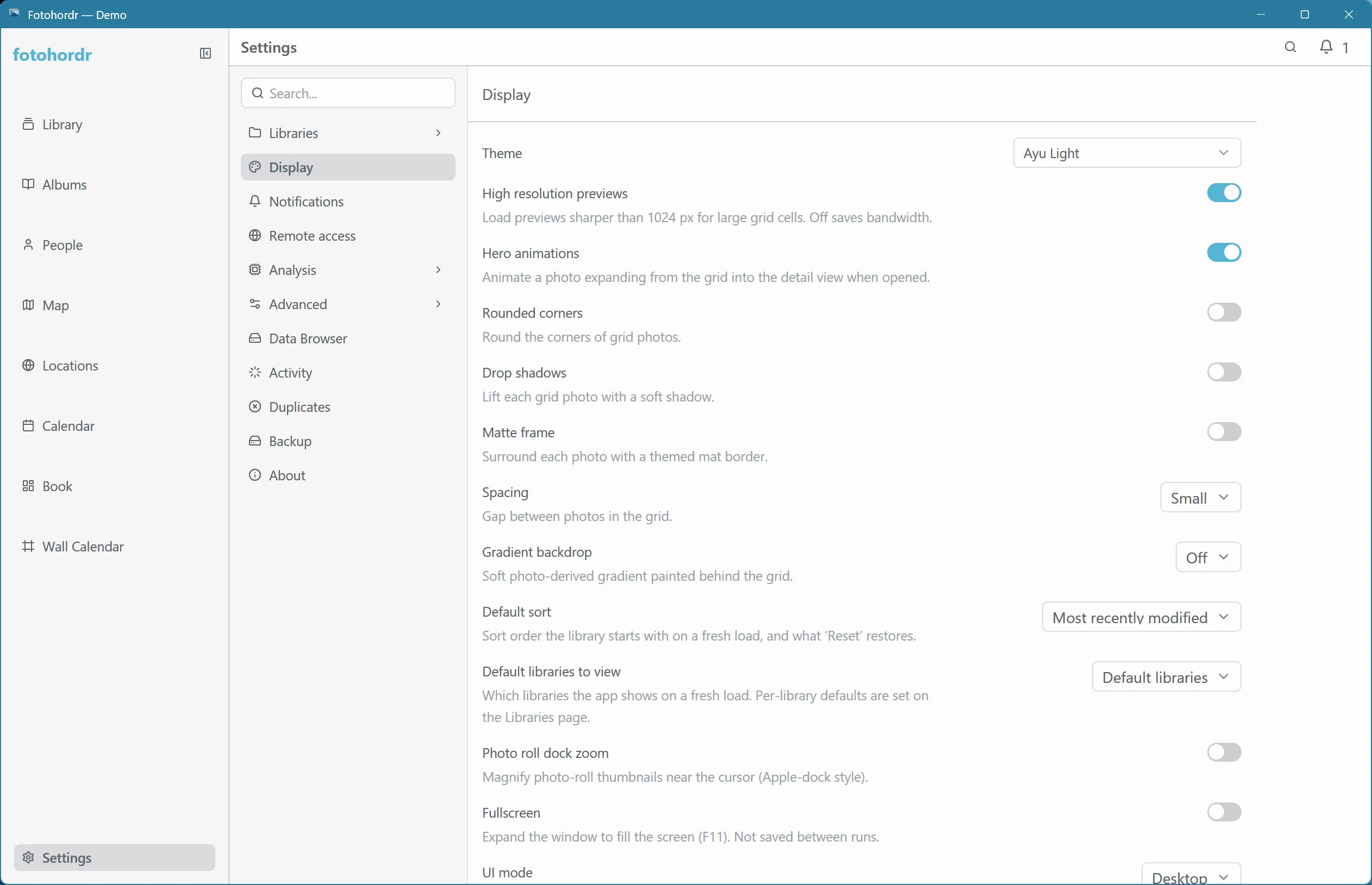
The gradient can be turned off entirely, or set to always-light or always-dark regardless of the app’s own theme.
Libraries
Section titled “Libraries”For an admin (the standalone app, or a client granted admin capability on a server), the Libraries page manages which folders are scanned and lets you group folders into named libraries:
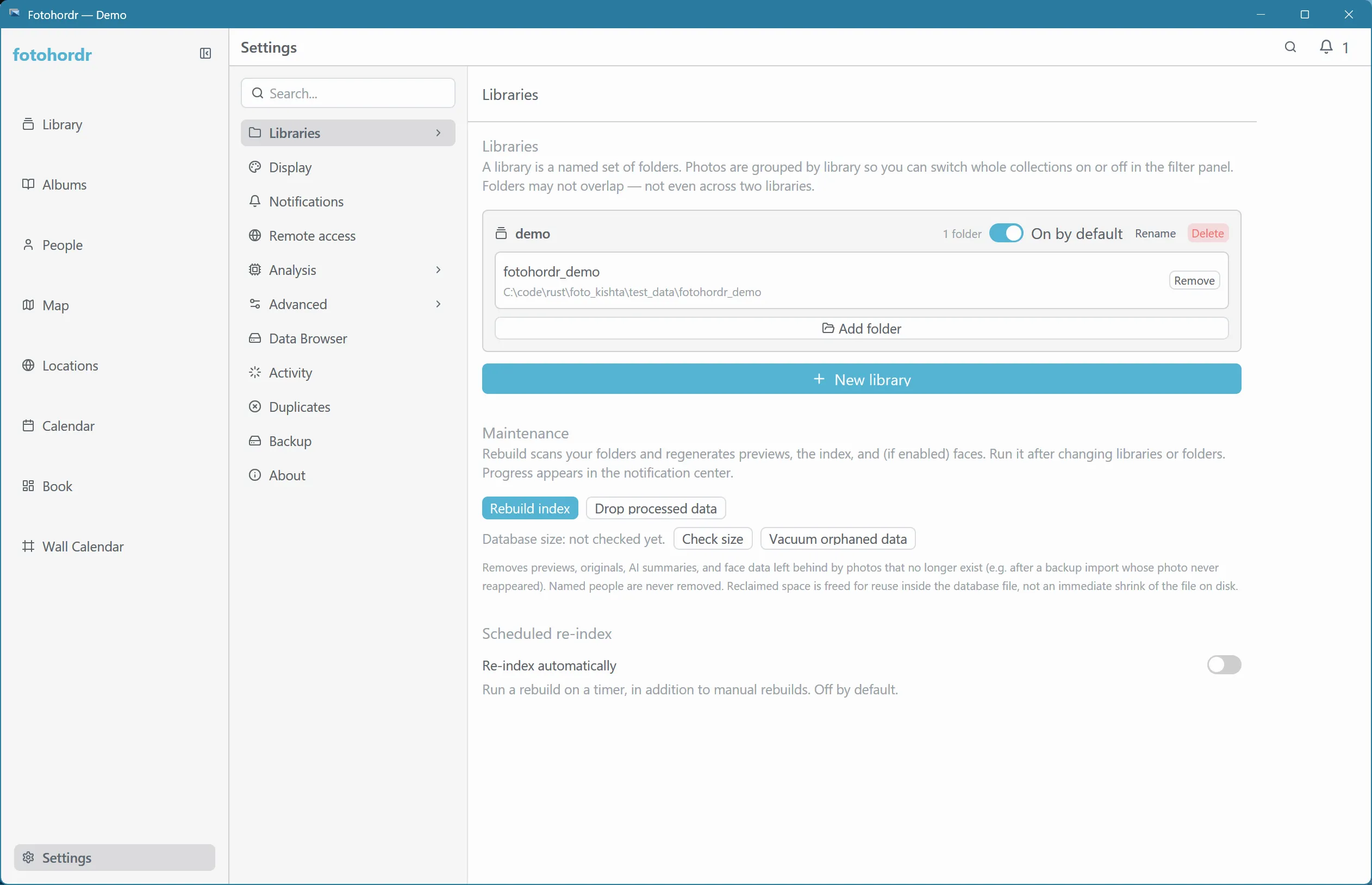
Rebuilding the index and scheduled re-indexing live under Advanced.
This is also where you’d add a folder mounted into a Docker-hosted server via the Browse Server Filesystem button, since a headless server has no local file picker of its own to fall back on.
Removing a folder here only stops it from being scanned — it doesn’t delete anything from disk.
Advanced
Section titled “Advanced”Things most people never need to touch:
- Library maintenance (admin): rebuild the index, drop processed data, check and vacuum the database, and turn on scheduled re-indexing.
- Cache: how much memory and disk this device uses to keep photos quick to show, with a button to clear the disk cache.
- Previews: high-resolution grid previews, and (admin) 4K preview rendering for sharper deep zoom.
- Experimental (admin) and Debugging toggles.
On a phone, Settings is a list of categories; tap one to open it, and use the back arrow at the top (or the system Back button) to return to the list.