Remote Access & Pairing
Any admin (the standalone app, or a client granted admin capability) sees a Remote access page under Settings:
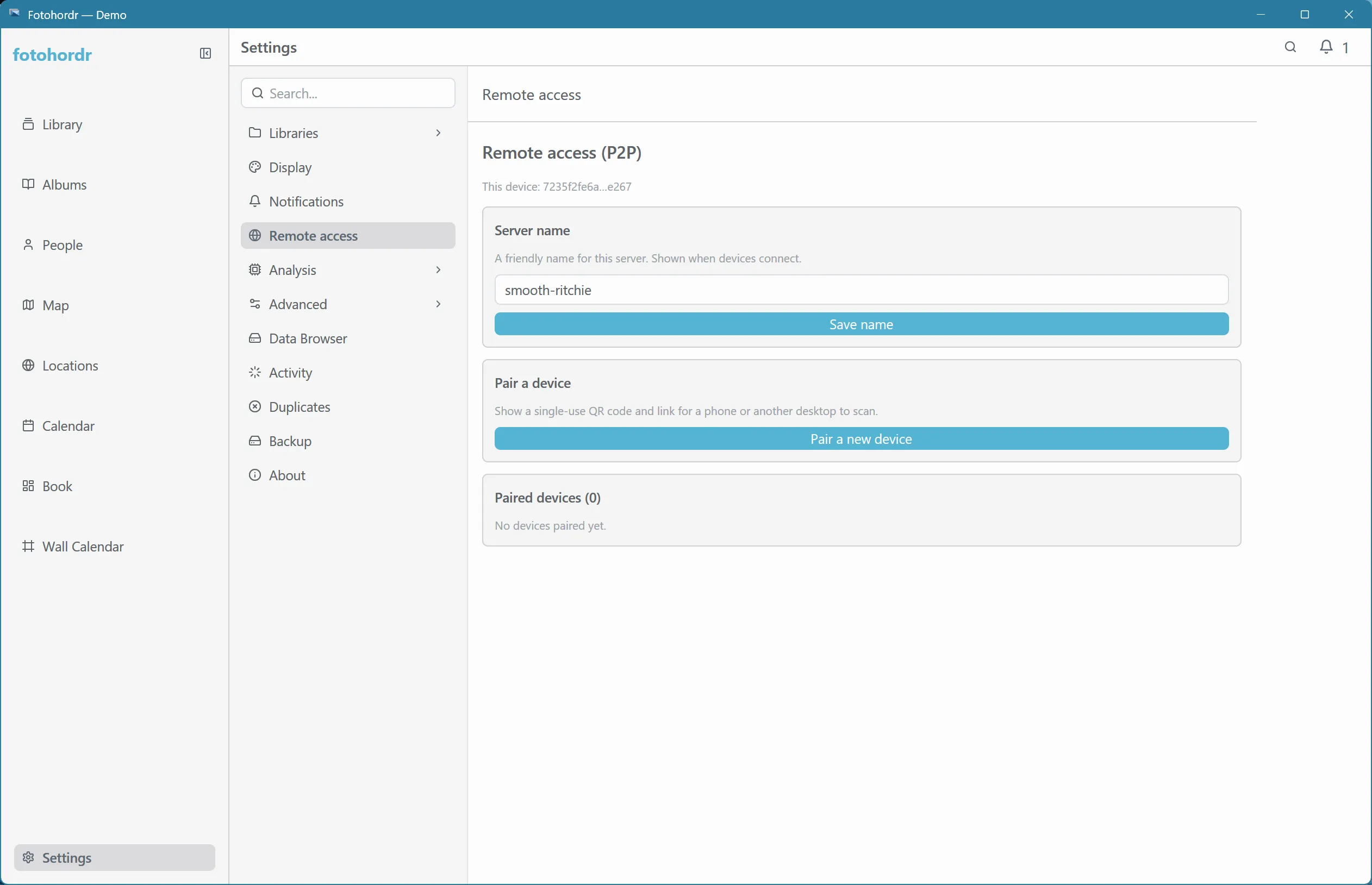
From here you can start pairing a new device, and see every device currently paired, with the option to revoke access from any of them individually.
Pairing a new device
Section titled “Pairing a new device”Selecting Pair a device opens a QR code and the equivalent
foto://pair?... link as text, refreshed periodically so there’s always
one valid on screen:
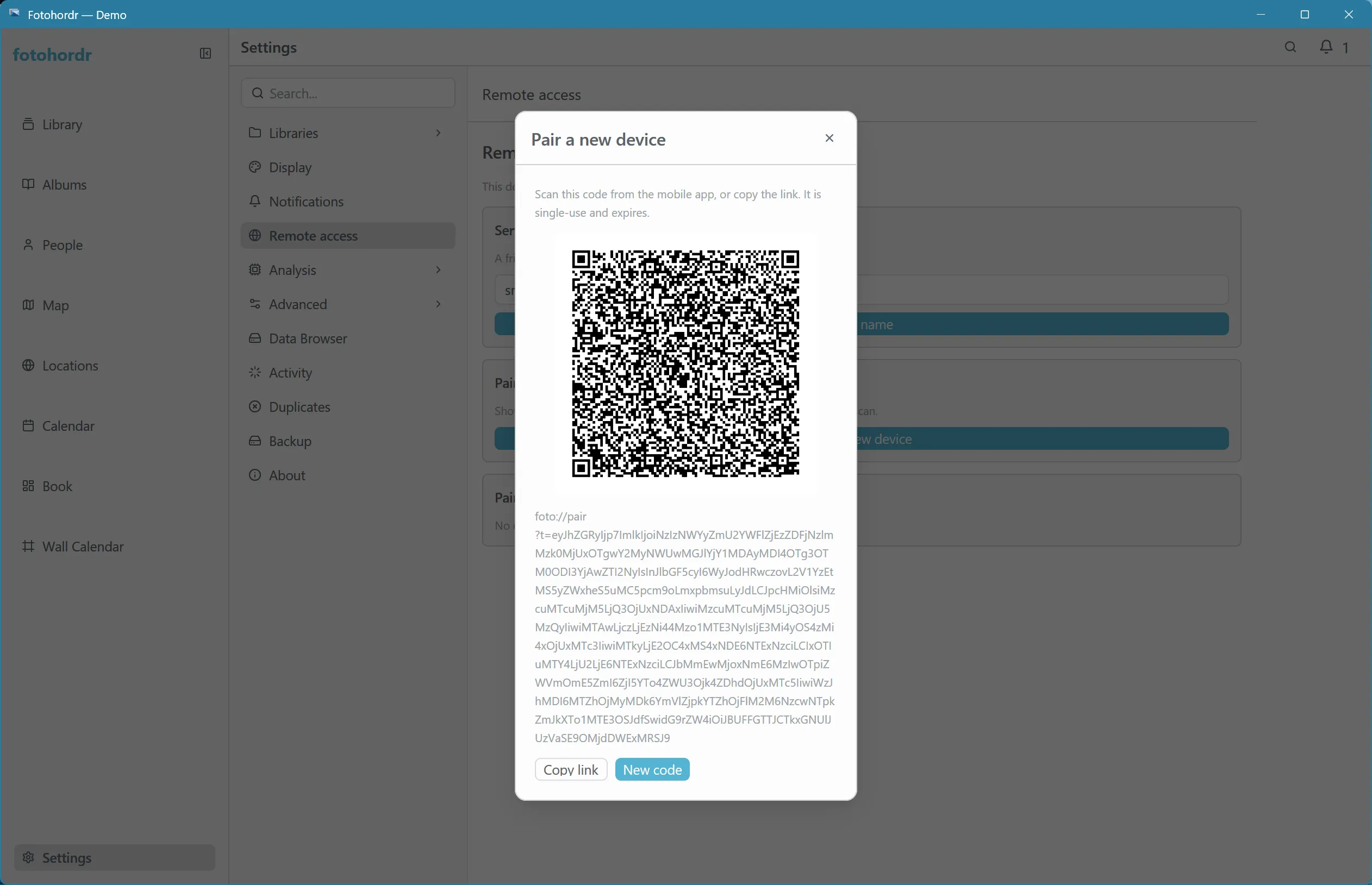
Scan it with the Android app’s camera, or paste the link into another desktop client’s connect screen — see Connecting a Client for the device side of this. A pairing link expires after a few minutes; if it does, just reopen this dialog for a fresh one.
Revoking a device
Section titled “Revoking a device”Removing a device from the paired list immediately ends its access — it can no longer read or write to this library until paired again from scratch. Nothing on the revoked device itself is touched; it simply stops being able to reach the server.
Admin over a remote connection
Section titled “Admin over a remote connection”If your client was granted admin capability, this same page and its
controls administer the server’s pairings, not just your own device’s —
this is how you manage a headless server’s paired devices without ever
needing terminal/docker logs access to it after the very first device is
paired.