Downloading Photos
Select one or more photos and choose Download to bring up the export dialog:
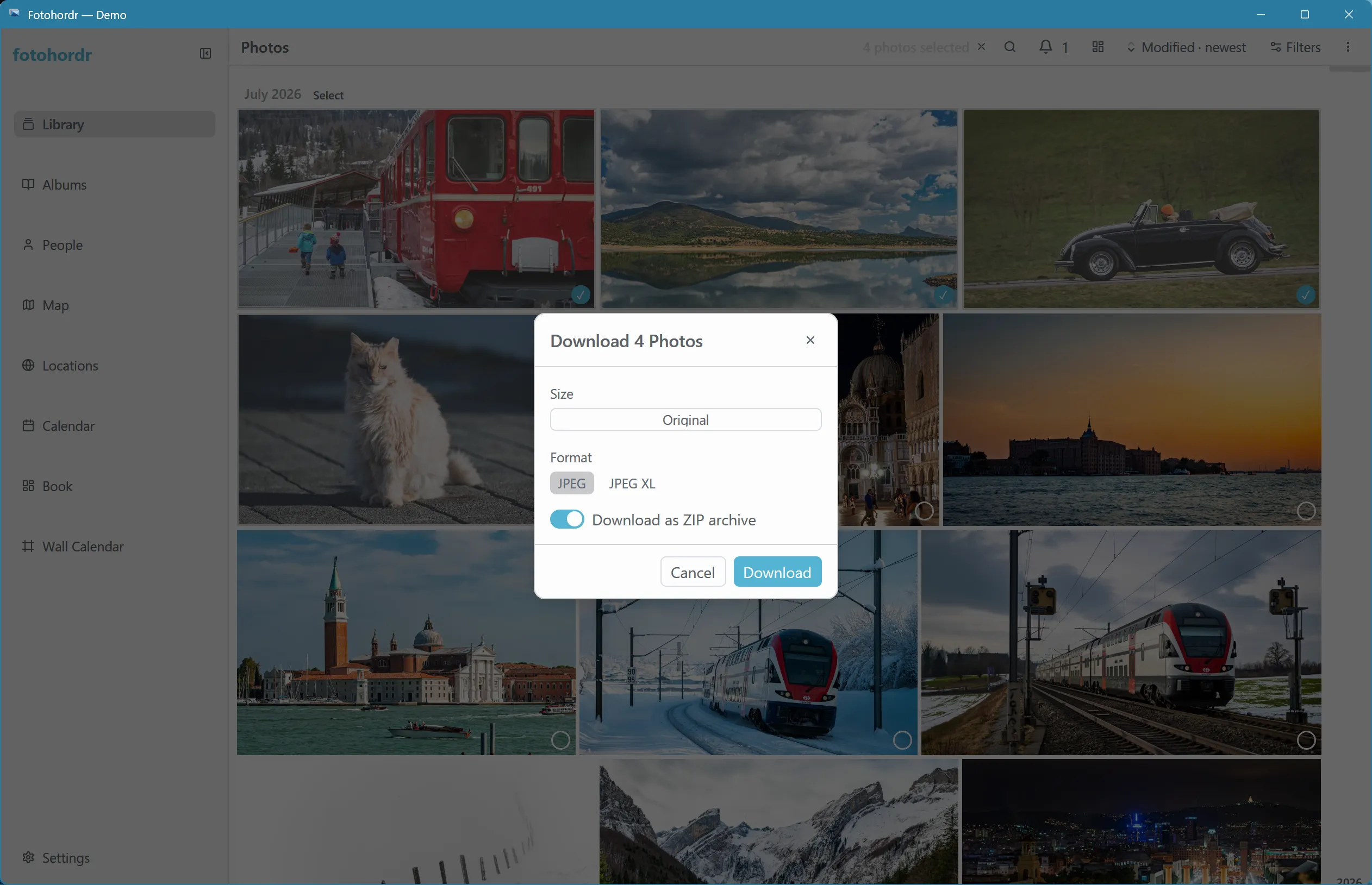
A few things it can do:
- Export format — keep the original file, or re-encode to JPEG or JPEG XL. Re-encoding happens wherever the photo actually lives (the server, for a remote connection), so a large export doesn’t mean transferring every original byte first just to convert it locally.
- Multiple photos at once — selecting more than one photo packages the download as a ZIP.
- Copy to clipboard — instead of saving to disk, copy the selection directly to the clipboard for pasting elsewhere. A single photo copies as an image; multiple photos copy as a set of files (on Windows, other apps see this the same way as copying files in Explorer).
This works identically whether you’re on the standalone app or a remote client — the export happens against whichever backend you’re connected to.