Backup & Restore
Available from Settings → Backup on the standalone app or an admin client connected to a server (native desktop only — it isn’t exposed on the browser Web UI or the Android app):
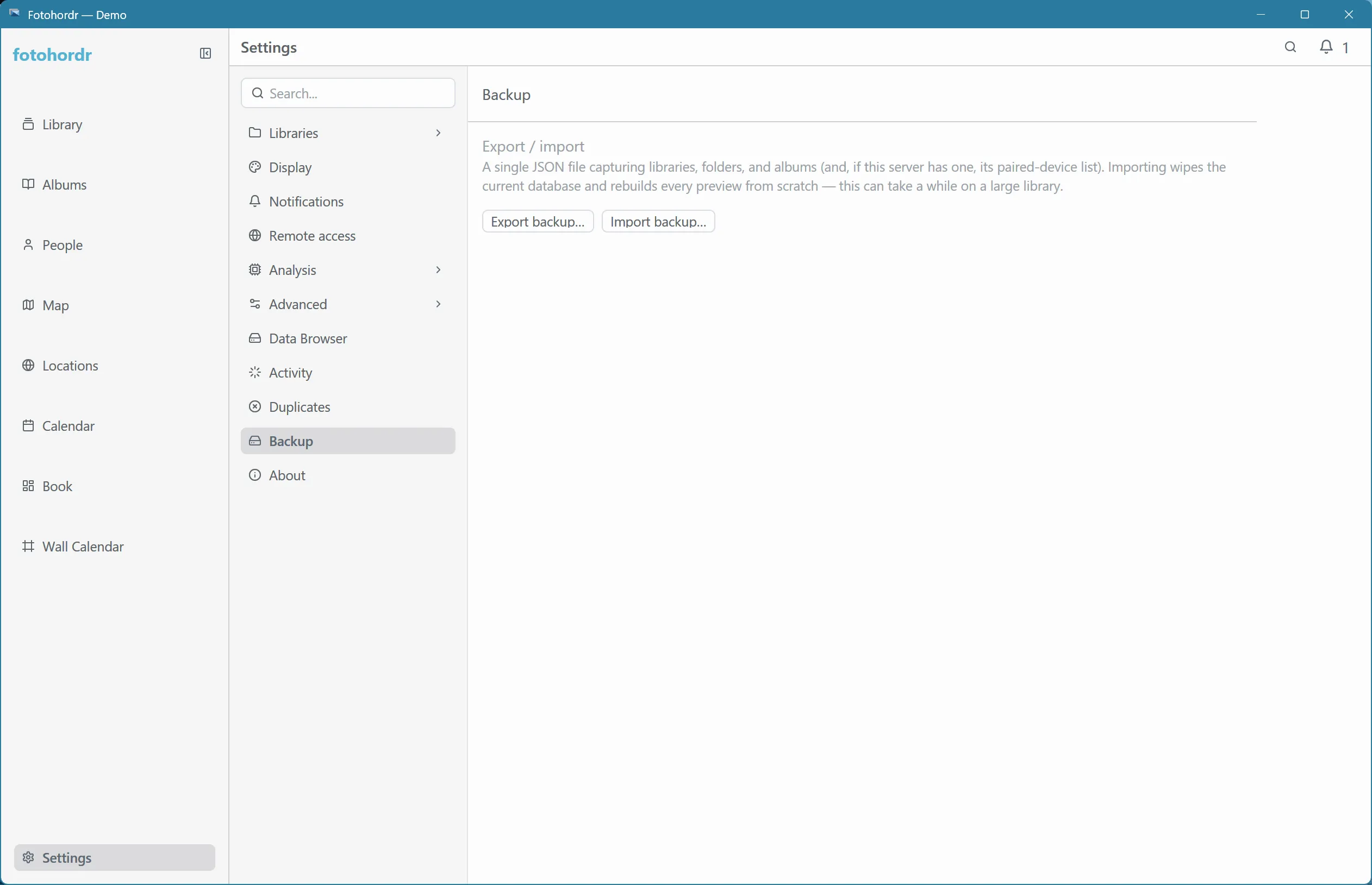
What’s in a backup
Section titled “What’s in a backup”A single JSON file capturing:
- Libraries and their folder paths
- Albums, with photo membership matched by content hash rather than internal ID — so it still lines up correctly even after a full rebuild mints fresh internal IDs for everything
- Diary entries
- Optionally, this server’s P2P identity and its paired-device list
Restoring
Section titled “Restoring”Importing wipes the current database and rebuilds every preview from scratch — expect this to take a while on a large library, since photo files themselves aren’t part of the backup (only metadata is); the original folders need to already be reachable at the same paths, or re-added afterward.
If the backup includes the P2P identity, restoring it means already-paired devices keep working without re-pairing, since the server keeps the same identity. If it doesn’t, a restore mints a fresh identity and every device has to pair again. Treat a backup file with the P2P identity included like a credential — anyone with it can act as this server.
Migrating between a standalone install and a server
Section titled “Migrating between a standalone install and a server”- Export a backup from the source (standalone app, or a desktop client connected to the source server).
- Copy the resulting
.jsonfile to wherever the destination will read it from. - Import it from a desktop client connected as admin to the destination (a fresh standalone install, or a new Docker-hosted server).
- Make sure the destination has access to the same photo files — either at the same paths, or re-add the folders after the import finishes.