Connecting a Client
Whether the library lives on a standalone desktop app (acting as host) or a Docker-hosted server, other devices reach it the same way: pairing.
The connect screen
Section titled “The connect screen”Launching the desktop remote client (fotohordr_client) with no arguments
opens straight to the connect screen:
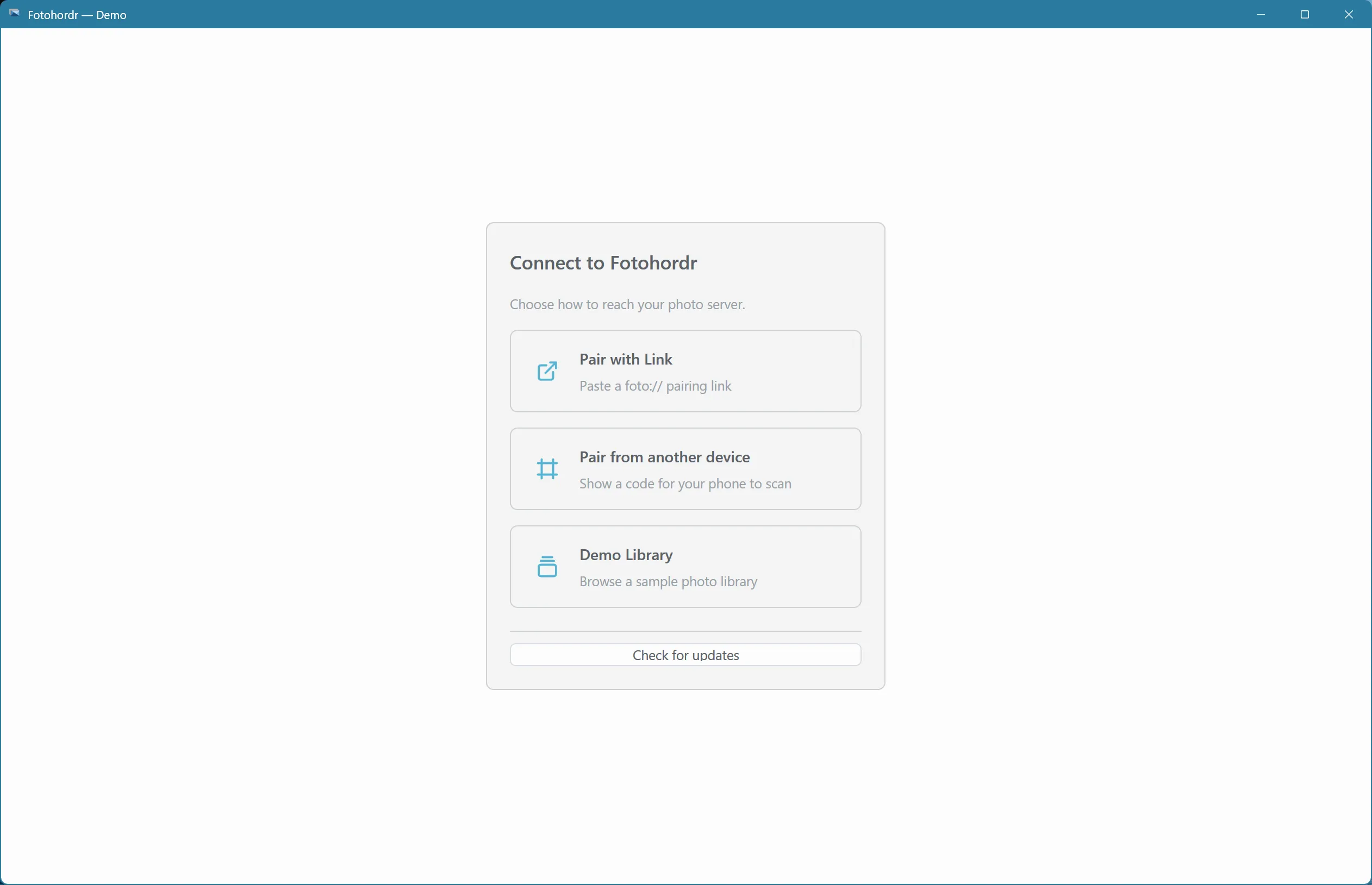
From here you can:
- Scan a QR code shown by the host/server’s pairing UI (Android client only — the desktop client has no camera).
- Paste a
foto://pair?...link copied from the host, or fromdocker logsfor a Docker-hosted server. - Open the hosted demo library — a read-only sample library, useful for trying the app before pointing it at your own.
Connecting from the command line
Section titled “Connecting from the command line”# Encrypted P2P, from a pairing linkfotohordr_client --ticket "foto://pair?t=..."
# Classic TCP/LAN, if you know the server's addressfotohordr_client --server 192.168.1.10:8787Either flag opens the window immediately (showing “Connecting…”) while the handshake happens in the background — you don’t have to wait for the connection to succeed before the app appears.
Where a pairing link comes from
Section titled “Where a pairing link comes from”- Standalone desktop host: Settings → Remote access shows a live QR code and the same link as text, refreshed automatically before it expires — see Remote Access & Pairing.
- Docker-hosted server: printed to
docker logson startup, or (once one device is paired as admin) from that device’s own Settings → Remote access page, same as above.
Camera-less devices (“reverse pairing”)
Section titled “Camera-less devices (“reverse pairing”)”Normal pairing needs the host to show a QR that the new device scans —
but a camera-less new device (a desktop client, or an Android TV) can’t do
that, and typing a long link is painful. For these, the new device instead
shows its own foto://enroll?... QR code; an already-paired admin phone
scans that and pushes a real pairing ticket to it over a short-lived,
throwaway connection. No server configuration is needed — it’s just a
different order of who scans whom.
Once connected
Section titled “Once connected”A client’s local storage is a read-only mirror synced from the server — photos, albums, and diary entries always come from there, and any changes you make go back over the connection and sync to every other paired device. If the connection drops, the client keeps showing what it last synced and reconnects automatically when the server is reachable again.
If your account was granted admin capability on the server, the client’s Settings page also shows the same host-only controls (pairing other devices, folders, AI settings) described throughout the rest of this manual — administering a headless server is done entirely through a regular client, not a separate tool.